
By BAEKHO | TREND BYTE
Short answer: My external NVMe SSD measured about 465 MB/s in CrystalDiskMark, and large file copies sometimes dropped to around 200 MB/s. After I tested other USB ports, cables and enclosures and restarted Windows, it measured about 1,081 MB/s read and 1,091 MB/s write. I changed several things at once, so I cannot say which one fixed it. The lesson: check the whole connection, not just the drive.
An NVMe SSD is supposed to be fast. So when large file transfers on my external SSD dropped to around 200 MB/s, I knew something wasn't right.
I was using an SK hynix Gold P31 NVMe SSD with an external enclosure on my Windows gaming PC.
Instead of enjoying fast transfers, I ended up spending a surprising amount of time figuring out why my setup wasn't performing as expected.
Here's what happened, what I tested, and what finally helped.
1. The Problem: A Fast SSD with Slow Performance
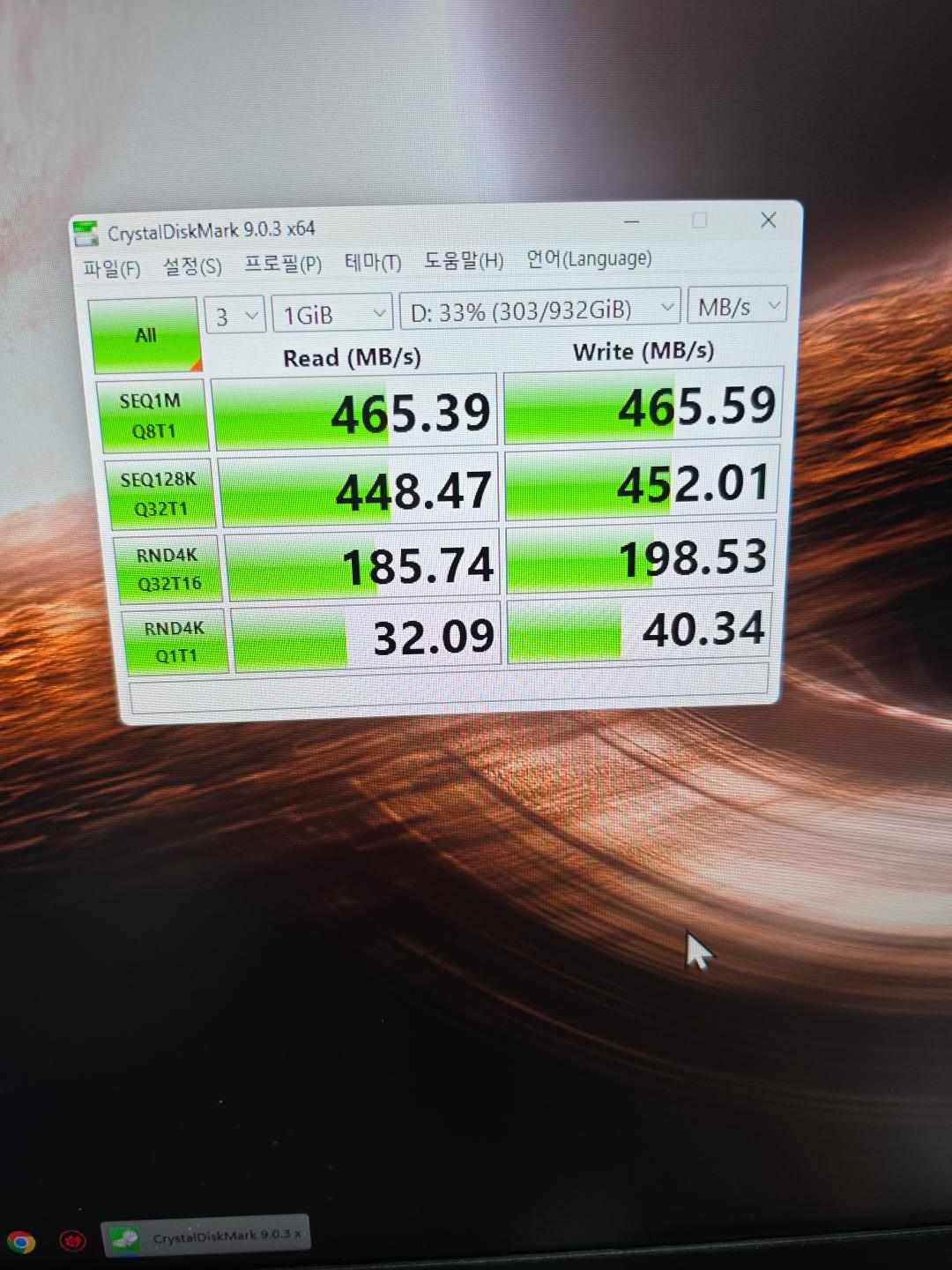
My external NVMe SSD wasn't delivering the performance I expected.
Large file transfers sometimes dropped to around 200 MB/s, and CrystalDiskMark showed about 465 MB/s. For an NVMe drive connected through a suitable high-speed USB enclosure, that was disappointing.
The frustrating part was that the SSD itself didn't appear to be the obvious problem.
That made me investigate the connection between the drive and my PC.
2. What I Tried First
I initially used an ACASIS external SSD enclosure.
During troubleshooting, I noticed that the front USB-C connection on my PC wasn't behaving consistently.
So I started testing different connection methods.
I tried alternative cables and USB ports, including connections closer to the motherboard.
One important lesson became clear:
A USB-C connector does not automatically guarantee high-speed data transfers.
The supported speed depends on the computer's USB controller, the port, the cable, and the SSD enclosure.
For example, USB 3.2 connections can support different signaling rates:
USB StandardMaximum Signaling Rate
| USB 3.2 Gen 1 | 5 Gbps |
| USB 3.2 Gen 2 | 10 Gbps |
| USB 3.2 Gen 2x2 | 20 Gbps |
These are theoretical interface rates, not guaranteed file-copy speeds.
3. Trying a Different External SSD Enclosure
I also bought a UGREEN enclosure to compare. It didn't perform well in my setup, so I went back to my ACASIS enclosure.
I also experimented with different USB connections to improve stability.
At one point, even a connection that had previously worked became unreliable.
This made the troubleshooting process more confusing than expected.
Instead of immediately assuming the SSD was defective, I decided to restart my PC with the external drive connected.
That turned out to be an important step in my troubleshooting.
After checking the connection again, the external SSD was working properly.
4. The Result: A Huge Performance Improvement
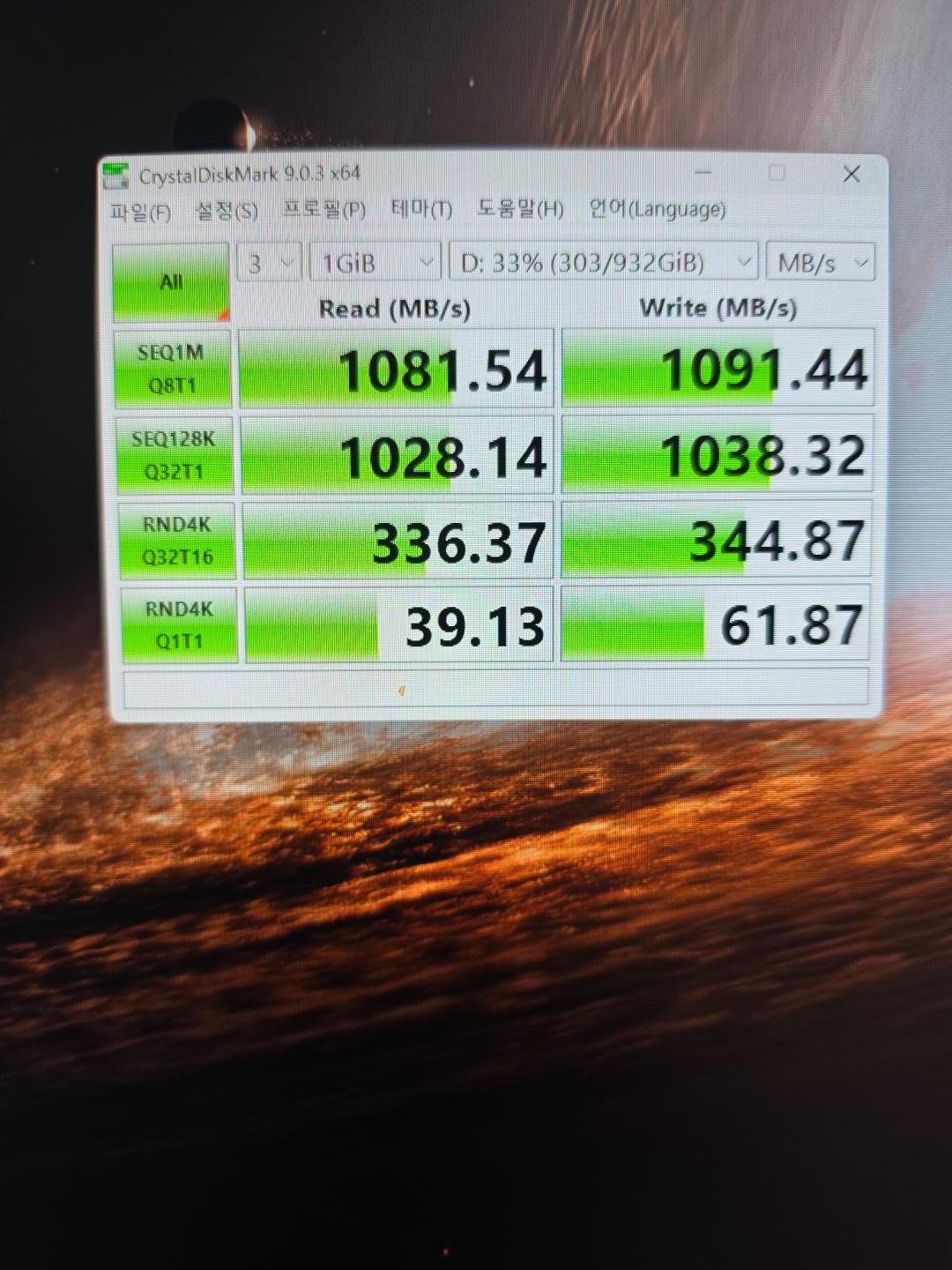
After testing the enclosures and connections and restarting the system, my benchmark results improved.
My observed results:
- Before troubleshooting: about 465 MB/s in CrystalDiskMark, with large transfers sometimes dropping to around 200 MB/s
- After troubleshooting: about 1,081 MB/s read and 1,091 MB/s write in CrystalDiskMark
That's more than double the measured sequential speed.
I also checked the thermal pad and heat management in the enclosure.
However, I can't say that the thermal pad alone fixed the speed problem. The improvement came after several changes, so I can't isolate one single cause with certainty.
What mattered most was finding a stable, high-speed connection.
5. What You Should Check If Your External NVMe SSD Is Slow
If you're experiencing something similar, here's the order I recommend checking things.
Step 1 — Try a different USB port
If you're using a front-panel USB port, test a suitable rear motherboard port as well.
Step 2 — Check the USB cable
Make sure the cable supports data transfers at the speed required by your enclosure. Some cables are intended primarily for charging or support lower transfer rates.
Step 3 — Check enclosure compatibility
Confirm the maximum USB speed supported by both the enclosure and your computer.
A 20 Gbps enclosure won't deliver 20 Gbps performance through a 5 Gbps port.
Step 4 — Restart your computer
If the external SSD isn't behaving normally, safely disconnect it, reconnect it, and try restarting Windows.
Step 5 — Run a repeatable benchmark
Tools such as CrystalDiskMark can help you compare sequential read and write speeds before and after troubleshooting.
Remember that benchmark results and actual file-copy speeds may differ.
6. What I Learned
My biggest mistake was focusing on the SSD itself instead of checking the entire connection.
An external SSD setup is only as fast and reliable as its weakest component.
The enclosure, USB port, cable, and computer all matter.
And sometimes, something as simple as restarting your PC can help resolve a frustrating connection issue.
If your NVMe SSD suddenly seems much slower than expected, don't rush to replace the drive.
Check your connection first.
It could save you time, money, and a lot of frustration.
Final Thoughts
This was one of those PC problems that started as a small annoyance and turned into a lengthy troubleshooting session.
But seeing the benchmark improve from about 465 MB/s to over 1,000 MB/s made the effort worthwhile.
I'll continue sharing real PC troubleshooting experiences, gaming hardware tips, and useful technology information here on TREND BYTE.
TREND BYTE — Real Experiences. Practical Solutions.
Results at a Glance
| Stage | What I measured (CrystalDiskMark, sequential) |
|---|---|
| Before troubleshooting | about 465 MB/s; large file transfers sometimes dropped to around 200 MB/s |
| After testing ports, cables and enclosures, then restarting | about 1,081 MB/s read and 1,091 MB/s write |
What I could not confirm: which single change did it. I changed several things at once (ports, cables, enclosure, a restart, and a look at the thermal pad), so I can only say the improvement came after finding a stable, high-speed connection. Benchmark numbers and real file-copy speeds can also differ.
Words to Know
- enclosure: a case that holds an SSD and connects it by USB (외장 케이스)
- troubleshooting: finding and fixing the cause of a problem (문제 해결)
- benchmark: a test that measures speed (성능 측정)
- motherboard: the main board that connects all PC parts (메인보드)
- signaling rates: how fast data can move through a connection (신호 전송 속도)
- sequential: reading or writing data in one long, continuous run (순차)
- thermal pad: a soft pad that moves heat away from a part (써멀 패드)
- isolate: to find exactly which one thing caused something (원인을 하나로 좁히다)
Sources (official pages, in English):
Related posts on TREND BYTE:
Last updated: November 21, 2026 (restructured with a short answer at the top and sources at the bottom; numbers unchanged).


