How to Install Cyberpunk 2077 Mods: Do the DLL Files Cause Conflicts? I Checked My Logs
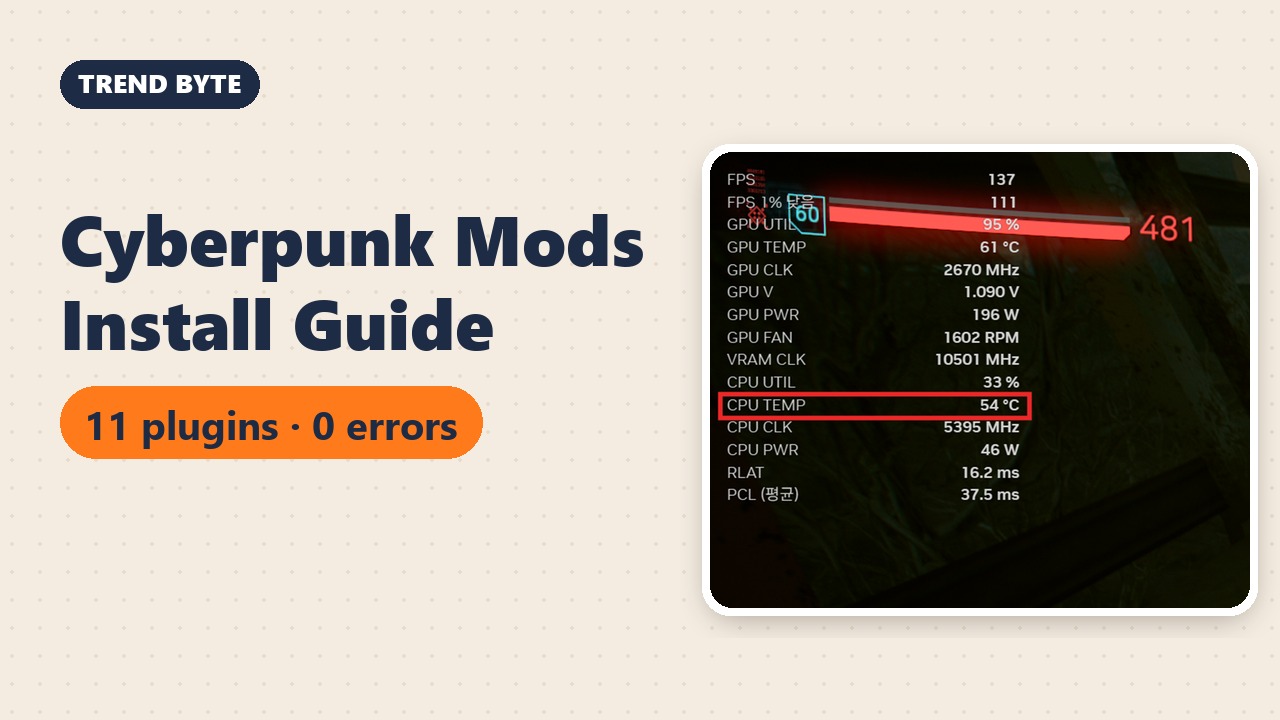
By BAEKHO | TREND BYTE
Short answer: Installing Cyberpunk 2077 mods puts DLL files (version.dll from Cyber Engine Tweaks and winmm.dll from RED4ext) in the game's bin\x64 folder. That looks scary, but it is how these tools load other mods. On my PC (game version 2.50, 11 plugins loaded) the RED4ext log showed 0 error lines. Back up your saves first, and expect to update the core tools after game updates.
What I checked, and what I did not: I checked the logs on my own PC after a launch: game version 2.50, 11 plugins loaded, 0 error lines. I did not test other mod combinations or other game versions, so treat this as one working example, not a guarantee.
Here's the honest reason I started modding Cyberpunk 2077: I didn't like how slow and frustrating the early game felt. That's really all there was to it.
I added one mod, then another, and now I have quite a lot of them. In this post I'll go through the steps in the same order I followed, so you can do it even if it's your first time.
1. My Favorite Mod Turned Out to Be a Hairstyle
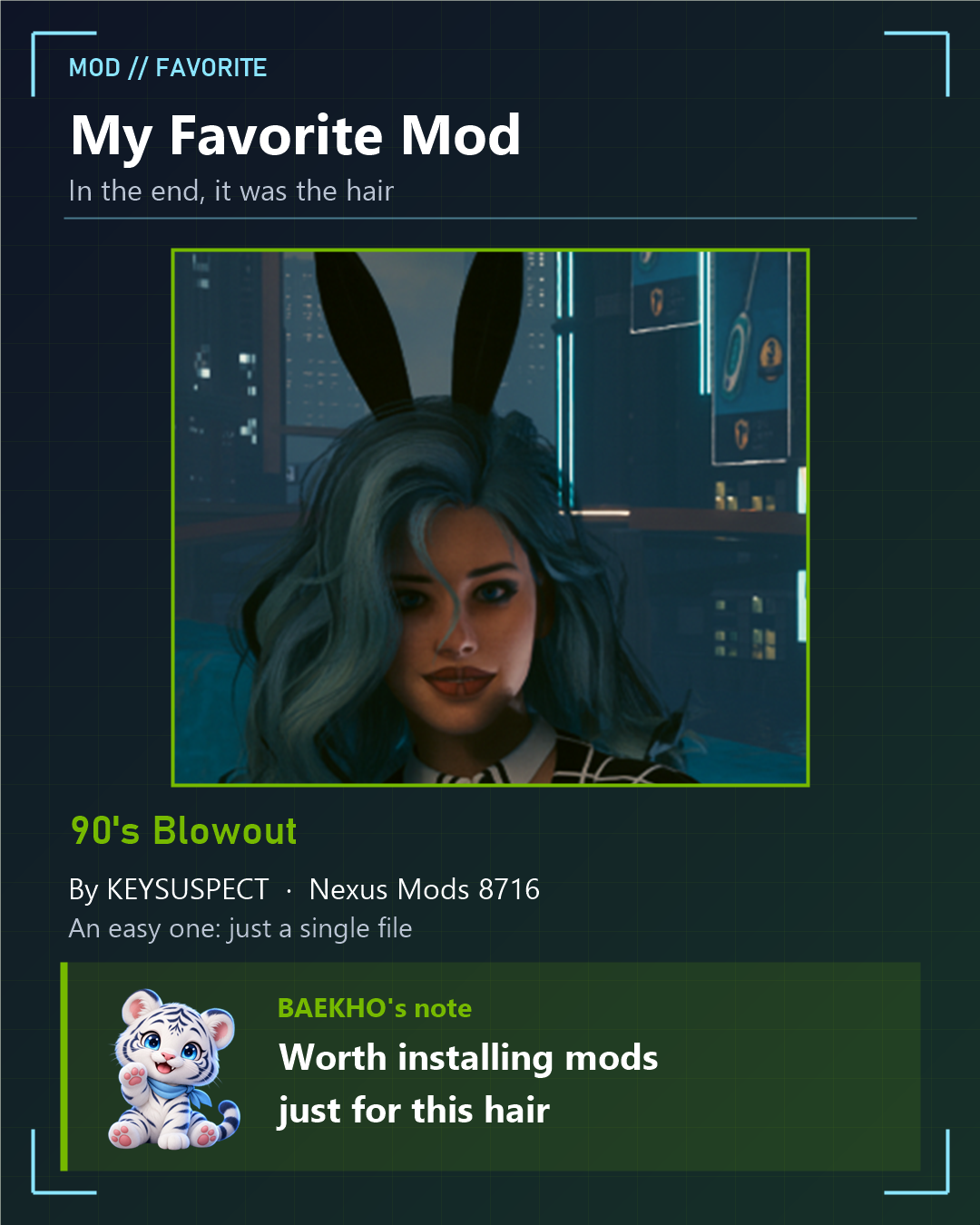
I've tried all kinds of mods, but the one I like most is this hairstyle.
- Mod name: 90's Blowout
- Author: KEYSUSPECT
- Nexus Mods: https://www.nexusmods.com/cyberpunk2077/mods/8716
Hair mods like this usually come as a single file, so they're one of the easier kinds to install.
2. What Scared Me Most: Putting DLL Files in the Game Folder
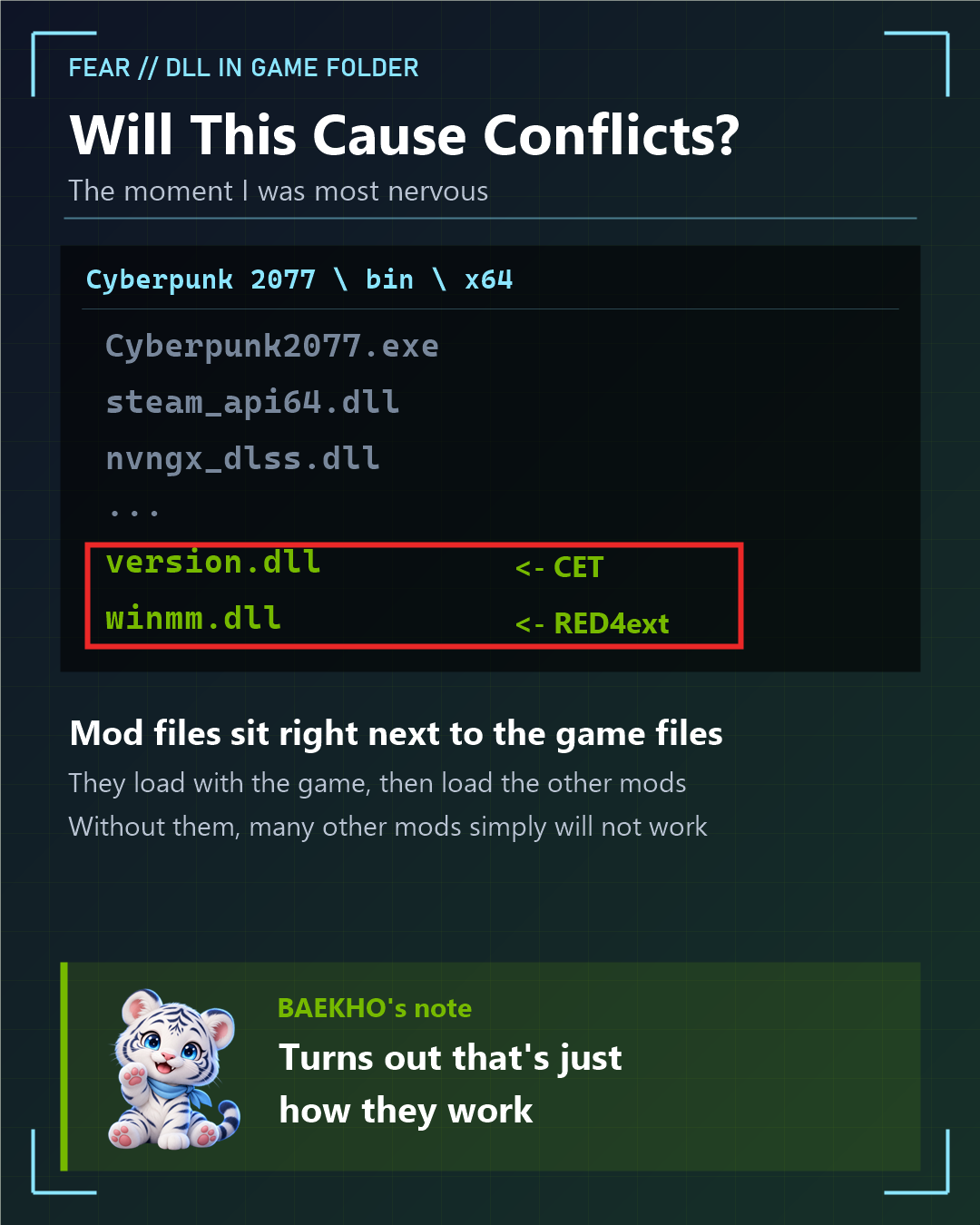
The most nervous moment came when I installed the core tools that most other mods depend on.
These tools place DLL files directly inside the game folder. When I open the bin\x64 folder on my PC, these two are there:
- version.dll, added by Cyber Engine Tweaks (CET)
- winmm.dll, added by RED4ext
Seeing extra files next to the game's own files made me think, "Won't this clash with the game?"
The short answer: this is simply how these tools work. The files are read when the game starts, and they load the other mods. Without these core tools, many other mods won't work at all.
3. So I Opened the Logs on My Own PC
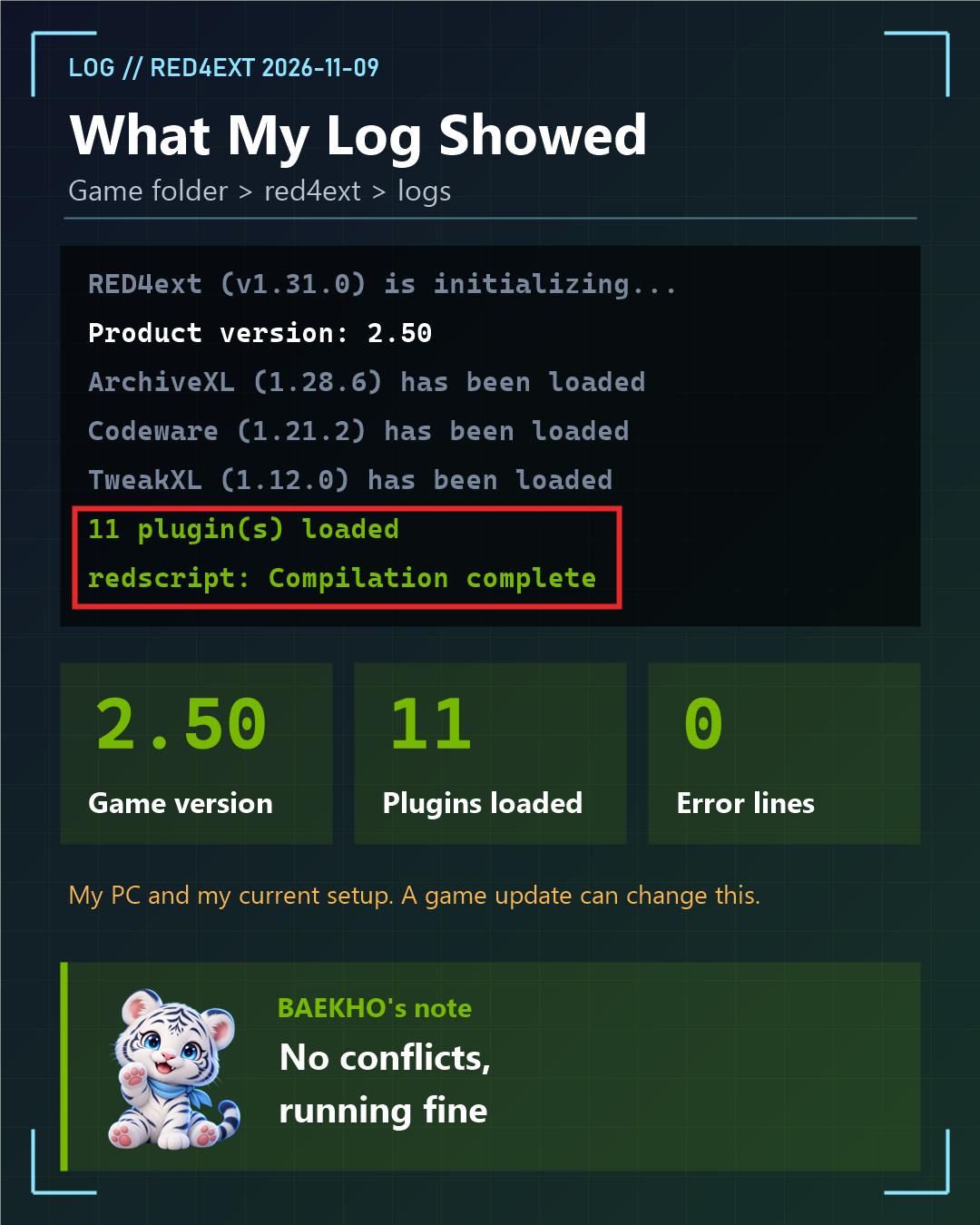
"It's fine" is hard to believe without proof, so I checked the records on my PC. RED4ext writes a log to the red4ext\logs folder every time the game starts.
My log from the night of November 9 showed:
- Game version: 2.50
- Plugins loaded: 11
- Error lines: 0
The redscript log also said "Compilation complete."
So at least on my PC, with my current set of mods, everything is loading without conflicts.
Keep in mind this is only my PC. When the game gets an update, the core tools usually need a new version too, and until then the game may not start. I cover that at the end.
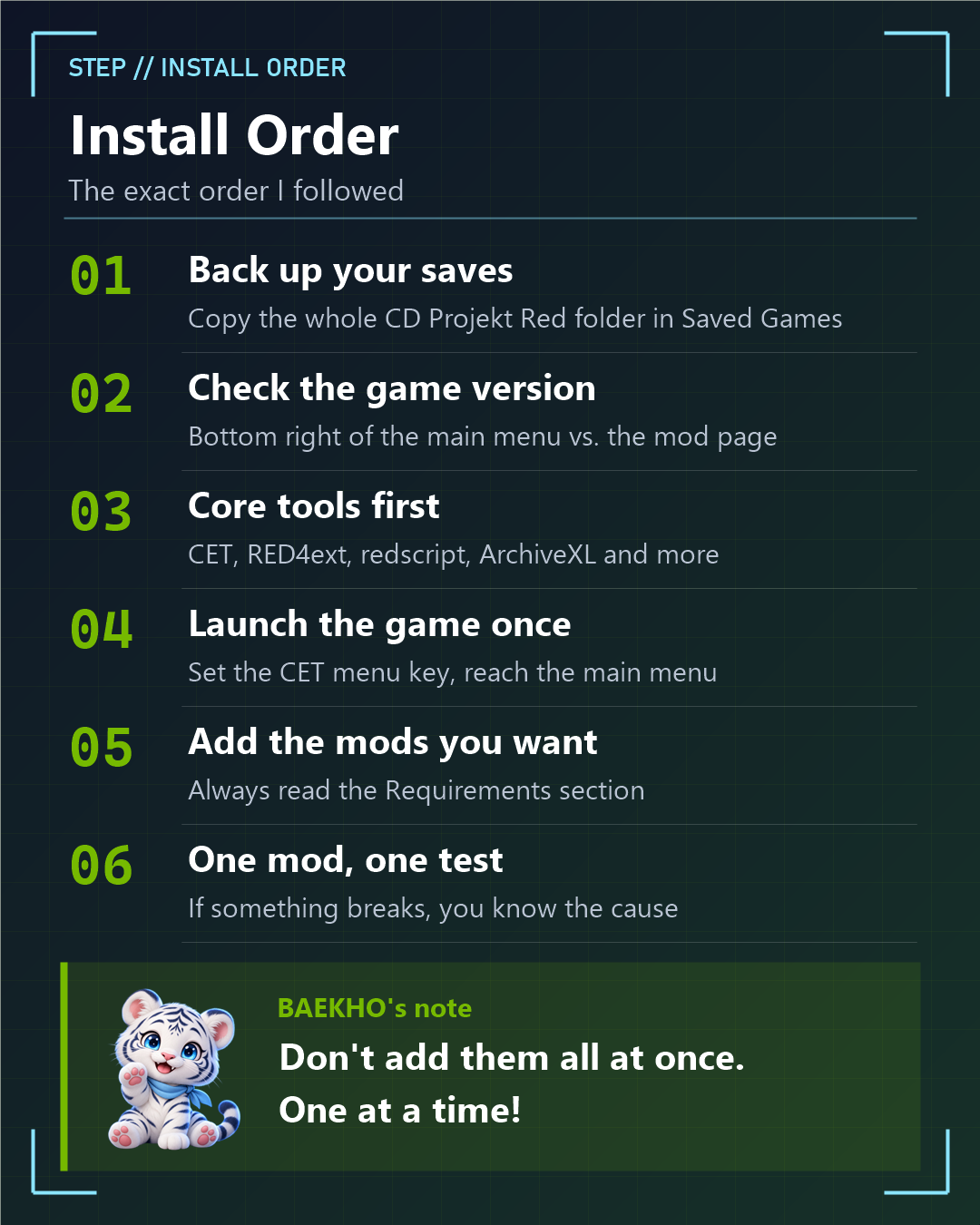
4. Install Order (Exactly What I Did)
1) Back up your saves first
Before adding any mods, copy your whole save folder somewhere safe, such as your desktop.
Location: C:\Users\(your user name)\Saved Games\CD Projekt Red\Cyberpunk 2077
2) Check your game version
The version is shown at the bottom right of the main menu. Mine was 2.5.
Make sure it matches the supported version on each mod page.
3) Install the core tools first
Many other mods rely on these, so they go in first:
- Cyber Engine Tweaks (CET)
- RED4ext
- redscript
- ArchiveXL
- TweakXL
- Codeware
4) Launch the game once
The first time you start the game with CET, it asks you to choose a key for its menu. Just press the key you want.
If you reach the main menu, the core tools are working.
5) Add the mods you want
Hair, clothing and quality-of-life mods come after that.
Check the "Requirements" section on each mod page so you don't miss anything.
6) Test the game after each mod
If you add several mods at once and something breaks, you won't know which one caused it.
I added one mod at a time and launched the game in between.
5. Where Do the Files Go?
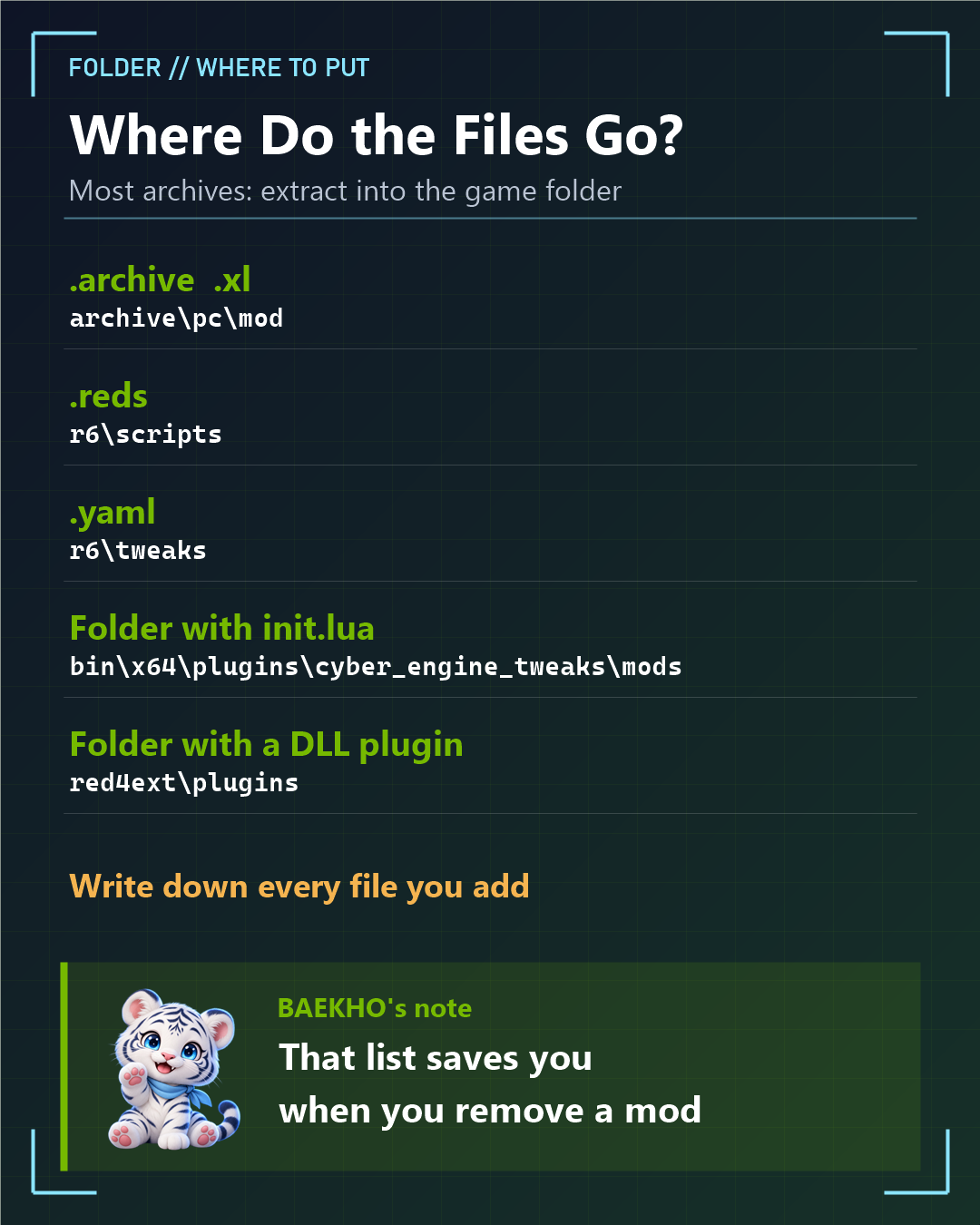
Most archives you download from Nexus Mods already contain folders like archive, r6, bin or red4ext.
In that case, extract the archive straight into the game folder (directly inside the Cyberpunk 2077 folder), and everything lands in the right place.
Steam game folder:
C:\Program Files (x86)\Steam\steamapps\common\Cyberpunk 2077
(You can also open it from your Steam Library: right-click the game → Manage → Browse local files.)
If the archive only contains loose files, use the file extension to decide where they go:
- .archive / .xl → archive\pc\mod
- .reds → r6\scripts
- .yaml → r6\tweaks
- A CET mod folder (the one with init.lua) → bin\x64\plugins\cyber_engine_tweaks\mods
- A RED4ext plugin folder (the one with a DLL) → red4ext\plugins
Write down the names of the files you add in a simple text file.
That list helps more than anything when you want to remove a mod later.
6. Mods I Actually Use
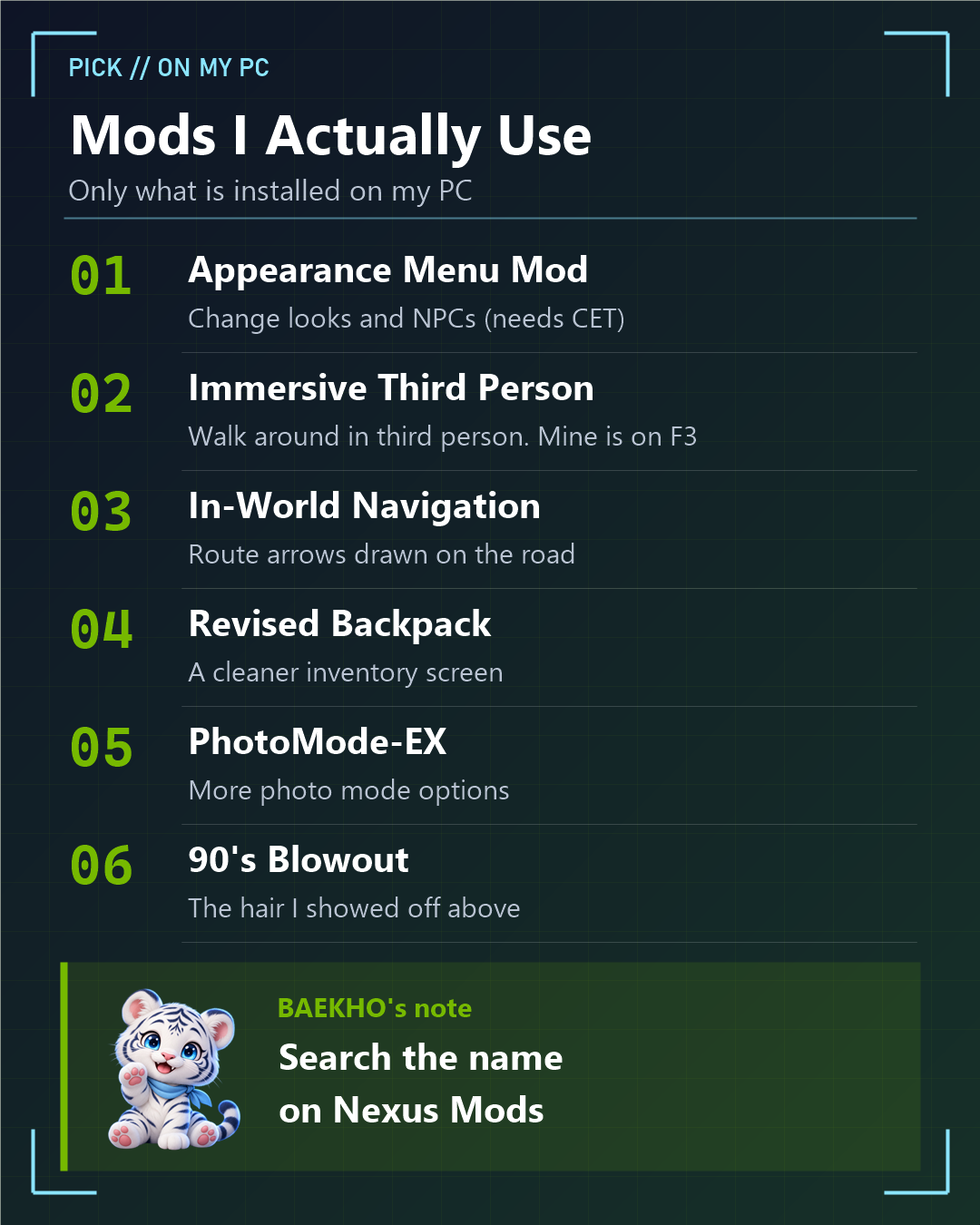
These are only the mods that are installed on my PC right now.
- Appearance Menu Mod (AMM): a menu for changing appearances and NPCs. Needs CET.
- Immersive Third Person: lets you walk around in third person. I set the toggle to F3.
- In-World Navigation: shows route arrows on the road.
- Revised Backpack: makes the inventory easier to read. (I also use a Korean translation add-on for it, since I play in Korean.)
- PhotoMode-EX: adds more photo mode features.
- 90's Blowout: the hairstyle I showed off above.
Search the name on Nexus Mods and they come right up.
You need a free Nexus Mods account to download files.
7. Removing Mods, or When the Game Updates

Removing a mod is simple.
Close the game, then move the files you added out of the game folder. That's it.
(This is why I said to write down the files you add.)
If the game won't start after an update, I check things in this order:
1) See whether the core tools (CET, RED4ext and so on) have a release that supports the new game version.
2) If they do, update the core tools first.
3) If it still doesn't work, remove the most recent mods one by one.
4) If things are really tangled, run "Verify integrity of game files" in Steam and put your backed-up saves back.
If you want to read the logs, open these two places:
- red4ext\logs (which plugins were loaded)
- r6\logs (redscript logs)
8. Wrapping Up
At first, even putting a single DLL file in the game folder scared me.
But once I backed up my saves, added mods one at a time and kept a list of the files, it wasn't nearly as scary as I thought.
I started modding because the early game felt slow, and now I'm hunting for hairstyles. Funny how that happens.
If you're curious about a particular mod, leave a comment.
Words to Know
- DLL files: program files that other programs load and use (DLL 파일)
- clash: to conflict and cause problems (충돌하다)
- log: a file where a program writes down what it did (기록 파일)
- Compilation: turning code into a form the game can run (컴파일)
- quality-of-life: small changes that make a game more comfortable (편의 기능)
- extract: to unpack files from a zip or other archive (압축 풀기)
- file extension: the letters after the dot in a file name (확장자)
- Verify integrity of game files: a Steam tool that checks and repairs game files (게임 파일 무결성 검사)
Sources (official pages, in English):
- Cyber Engine Tweaks (GitHub)
- RED4ext (GitHub)
- ArchiveXL (GitHub)
- TweakXL (GitHub)
- Codeware (GitHub)
- 90's Blowout (Nexus Mods)
Related posts on TREND BYTE:
Last updated: November 21, 2026 (restructured with a short answer at the top and sources at the bottom; numbers unchanged).