
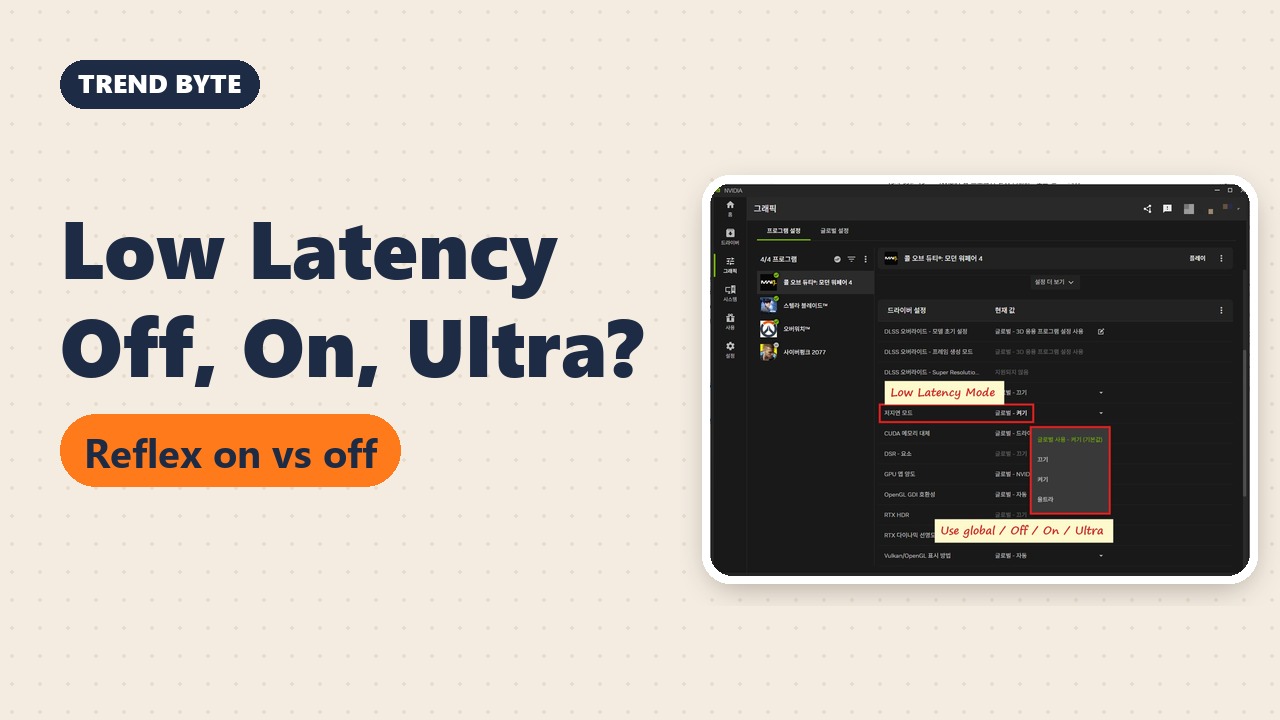
By BAEKHO | TREND BYTE
Short answer: If your game has NVIDIA Reflex, turn Reflex on in the game; NVIDIA says Reflex takes priority if Low Latency Mode is also on. If it does not, try On or Ultra in the NVIDIA App, which mainly helps DirectX 9 and 11 games that are GPU-bound at about 60–100 FPS. I did not measure input lag myself, so the numbers here are NVIDIA's.
My RTX 4070 SUPER has about 12GB of video memory (VRAM). So I've spent a lot of time squeezing every bit of performance out of it, adjusting settings one by one. NVIDIA's Low Latency Mode and Reflex are two of the settings I ended up turning on along the way.
In this post I'll explain the difference between Off, On and Ultra in the NVIDIA App, and how it relates to the Reflex option inside games. I'll use the real settings screens from my PC: a Ryzen 7 9800X3D and an RTX 4070 SUPER. My NVIDIA App and games are in Korean, so I've added English notes on every screenshot.
One thing up front: I did not measure input lag with these settings on and off. The differences below are based on NVIDIA's own explanations.
1. What Low Latency Mode Actually Reduces
When you click the mouse, it takes a tiny moment before you see the muzzle flash on screen. That delay is input lag, also called latency.
When your graphics card is busy, the frames your CPU has prepared wait in a line, a render queue, before the graphics card draws them. The longer the line, the later your latest move shows up on screen. Low Latency Mode shortens that line.
2. Off vs On vs Ultra
This is how NVIDIA described the three options when it introduced the feature:
- Off: the game's engine queues 1 to 3 frames on its own, for maximum throughput.
- On: limits the queue to 1 frame. NVIDIA says this is the same as the old "Max Pre-Rendered Frames = 1" setting.
- Ultra: sends each frame "just in time" for the graphics card to pick it up and start drawing.
NVIDIA said Ultra can reduce latency by up to 33%. Keep in mind that this is NVIDIA's own number from 2019, not something you'll see in every game.
NVIDIA also gave two conditions:
- It has the most impact when your game is GPU-bound and running at about 60 to 100 FPS.
- It works in DirectX 9 and DirectX 11 games. In DirectX 12 and Vulkan games, the game itself decides how frames are queued, so this setting may do nothing there.
3. How to Change It in the NVIDIA App
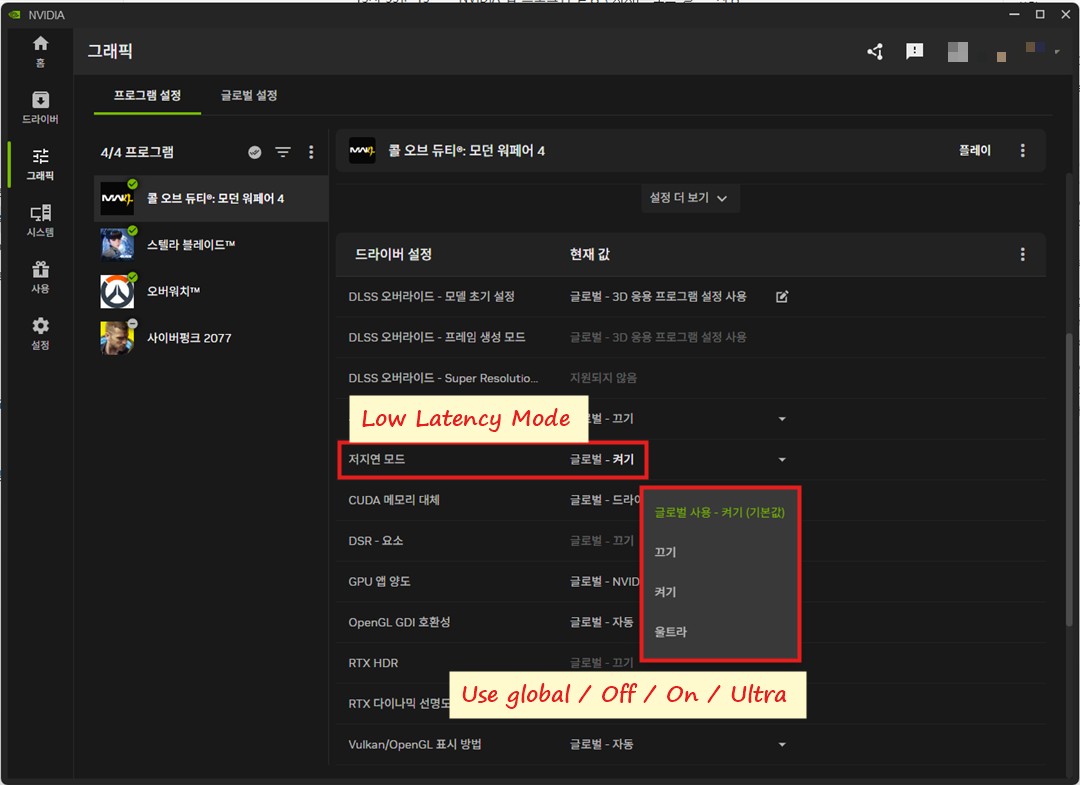
- Open the NVIDIA App and click "Graphics" on the left (그래픽 on my Korean screen).
- To change one game, use "Program Settings" and pick the game. To change every game, go to "Global Settings."
- Find "Low Latency Mode" (저지연 모드) and click its value.
In Program Settings the list has one extra option, "Use global setting." It simply follows whatever you set in Global Settings. My global value is On, so it shows "Use global setting - On."
If you use the NVIDIA Control Panel instead, the same option is under "Manage 3D Settings."
4. If the Game Has Reflex, Use Reflex First
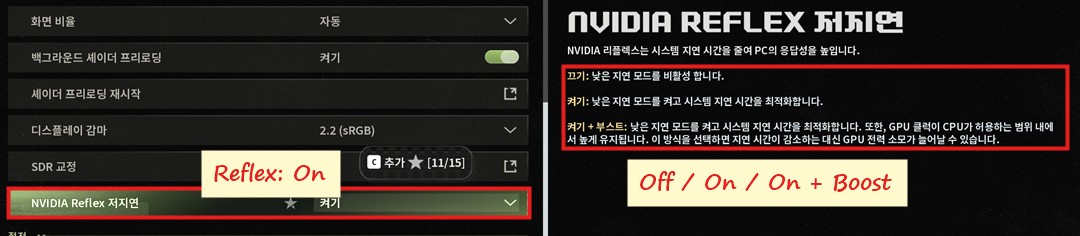
This is the graphics menu in Call of Duty: Modern Warfare 4 on my PC (Settings → Graphics → Display → NVIDIA Reflex Low Latency).
NVIDIA Reflex is a low-latency technology built into the game itself. NVIDIA recommends using it when a game supports it. And what if you leave both Reflex and Low Latency Mode on? According to NVIDIA, Reflex automatically takes priority. So you don't need to switch one off out of fear that they'll fight each other.
The in-game descriptions in Modern Warfare 4 say:
- Off: turns the low latency mode off.
- On: turns it on and optimizes system latency.
- On + Boost: does the same, and also keeps the GPU clock high. The game warns that this can increase GPU power use.
My own setup: Low Latency Mode On in the NVIDIA App, and Reflex On in the game.
5. Which One Should You Pick?
- The game has Reflex: turn Reflex on in the game.
- No Reflex: try On or Ultra in the NVIDIA App.
- Your frame rate has lots of room to spare: when the graphics card isn't busy, the line of frames is already short, so don't expect a big difference.
6. A Common Mix-Up: Low Latency Mode Doesn't Save VRAM

Low Latency Mode is about how fast your actions appear on screen. It does not save VRAM. If you're running out of VRAM, you need to lower graphics settings such as textures.
Honestly, VRAM is the thing I watch more closely. Modern Warfare 4 shows a VRAM bar in the bottom right of its settings menu. On my PC it reads 7.71 of 11.71 GB (Modern Warfare 4 uses 5.98GB, other apps 1.73GB).
The game still runs if you go past that limit. But when I go over it, I can feel the graphics card struggling right away, so I try not to.
What I'd like to say is this: you should have a rough idea of your graphics card's limits. That's what lets you walk the line between pushing it and holding back. Push too hard and I worry about the card's lifespan; hold back too much and it feels like I'm not using the power I paid for.
7. Summary
- Off: 1 to 3 frames wait in line / On: 1 frame / Ultra: frames are sent just in time
- If the game has Reflex, turn on Reflex (with both on, Reflex takes priority)
- No Reflex? Use Low Latency Mode in the NVIDIA App
- It mainly helps in DirectX 9/11 games that are GPU-bound at about 60 to 100 FPS
- Running out of VRAM is fixed with graphics settings, not Low Latency Mode
8. Words to Know
- input lag: the delay between pressing a key or clicking and seeing the result on screen (입력 지연)
- latency: delay; in games, usually the same as input lag (지연 시간)
- render queue: the line of prepared frames waiting for the graphics card to draw them (렌더 대기열)
- GPU-bound: when the graphics card is the part working at its limit and holding the frame rate back (GPU 한계 상태)
- NVIDIA Reflex: an NVIDIA low-latency technology built into supported games (엔비디아 리플렉스)
- VRAM: the graphics card's own memory for textures and other game data (그래픽 메모리)
- throughput: how much work gets done in a given time; here, how many frames get drawn (처리량)
- clock: how fast a chip runs, in MHz (클럭, 작동 속도)
Sources (official pages, in English):
- NVIDIA GeForce News: gamescom 2019 Game Ready Driver (Low Latency Mode) (August 2019)
- NVIDIA GeForce News: Introducing NVIDIA Reflex (September 2020)
Related posts on TREND BYTE:
Last updated: November 21, 2026 (restructured with a short answer at the top and sources at the bottom; numbers unchanged).

