
By BAEKHO | TREND BYTE
Short answer: NVIDIA recommends leaving V-Sync at its global default, “Use the 3D application setting,” and changing it per game when needed. Since driver 461.09, forcing V-Sync off for everything can cause tearing even in windowed games. My own NVIDIA App has Vertical sync On, Low Latency Mode On and monitor technology G-SYNC Compatible, and I checked these against NVIDIA's guides.
Sometimes a game image looks like it's been cut in half, with the top and bottom out of line. That's called screen tearing. V-Sync is the setting that stops it, and if you have a G-SYNC monitor, the setup is a little different.
My reason for touching these settings wasn't anything special. I just wanted my games to feel smoother.
But when I sat down to write this, I realized I didn't really know why my settings were the way they were. I had set them up a while ago after asking an AI (Gemini). So this time I looked up NVIDIA's official guides and checked my settings against them.
1. V-Sync in One Line
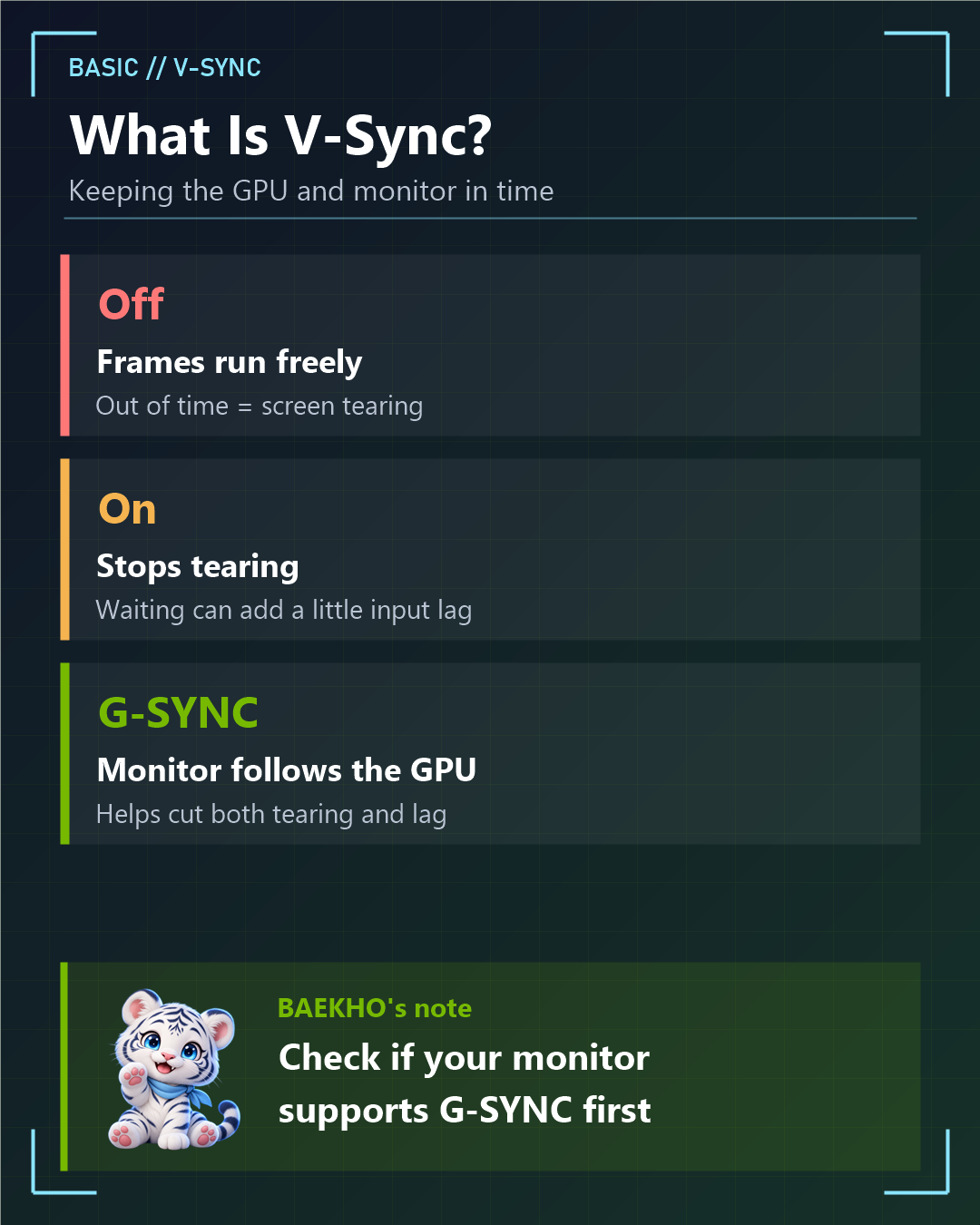
V-Sync makes the graphics card send each frame in time with the monitor's refresh rate.
- Off: frames come out freely, but when the timing doesn't match, the image can tear.
- On: tearing stops, but waiting for the monitor can add a little input lag.
- G-SYNC: the monitor follows the graphics card instead. This helps reduce both tearing and lag.
2. How to Turn V-Sync On or Off in the NVIDIA App
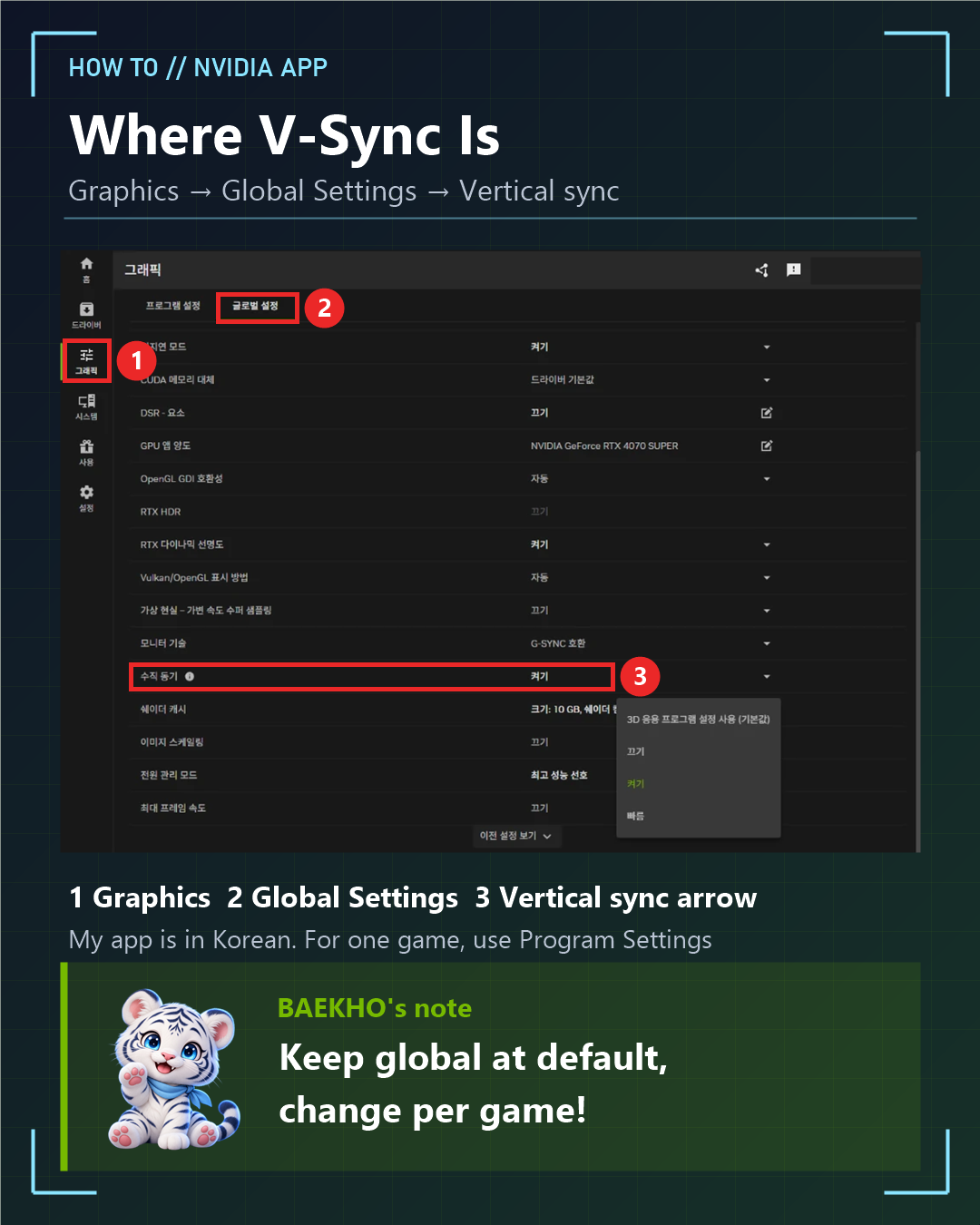
My NVIDIA App runs in Korean, so the screenshots show Korean labels. I've added the English names here.
1) Open the NVIDIA App and click "Graphics" on the left.
2) Click the "Global Settings" tab at the top. (To change only one game, use "Program Settings" and pick the game.)
3) Find "Vertical sync" in the list and click the arrow on the right.

4) Pick a value. My app showed four options:
- Use the 3D application setting (default): follows each game's own V-Sync setting.
- Off: turns V-Sync off.
- On: turns V-Sync on.
- Fast: meant for games where the frame rate runs far above the refresh rate. It aims to cut tearing while adding less lag.
NVIDIA recommends leaving the global setting at its default, "Use the 3D application setting." Starting with driver 461.09, windowed games follow their own V-Sync setting too. So if you force V-Sync off for everything, NVIDIA says tearing can appear even in windowed mode.
If you only want it off in one game, it's safer to change it in that game's "Program Settings."
3. My Settings
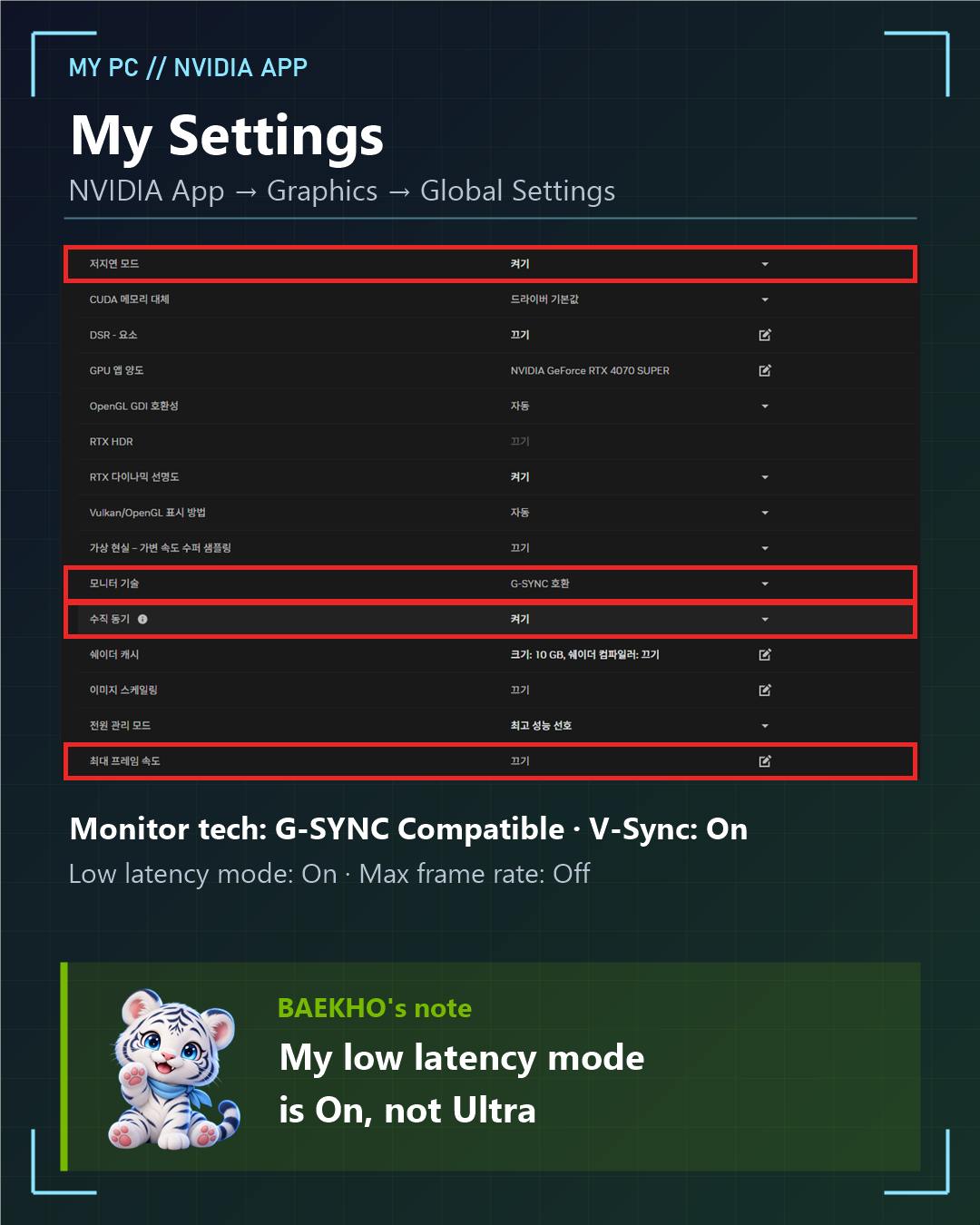
Here are my NVIDIA App global settings:
- Monitor technology: G-SYNC Compatible
- Vertical sync: On
- Low latency mode: On
- Max frame rate: Off
My monitor is an LG model, and the NVIDIA Control Panel lists it as "G-SYNC Compatible."
4. If You Have a G-SYNC Monitor
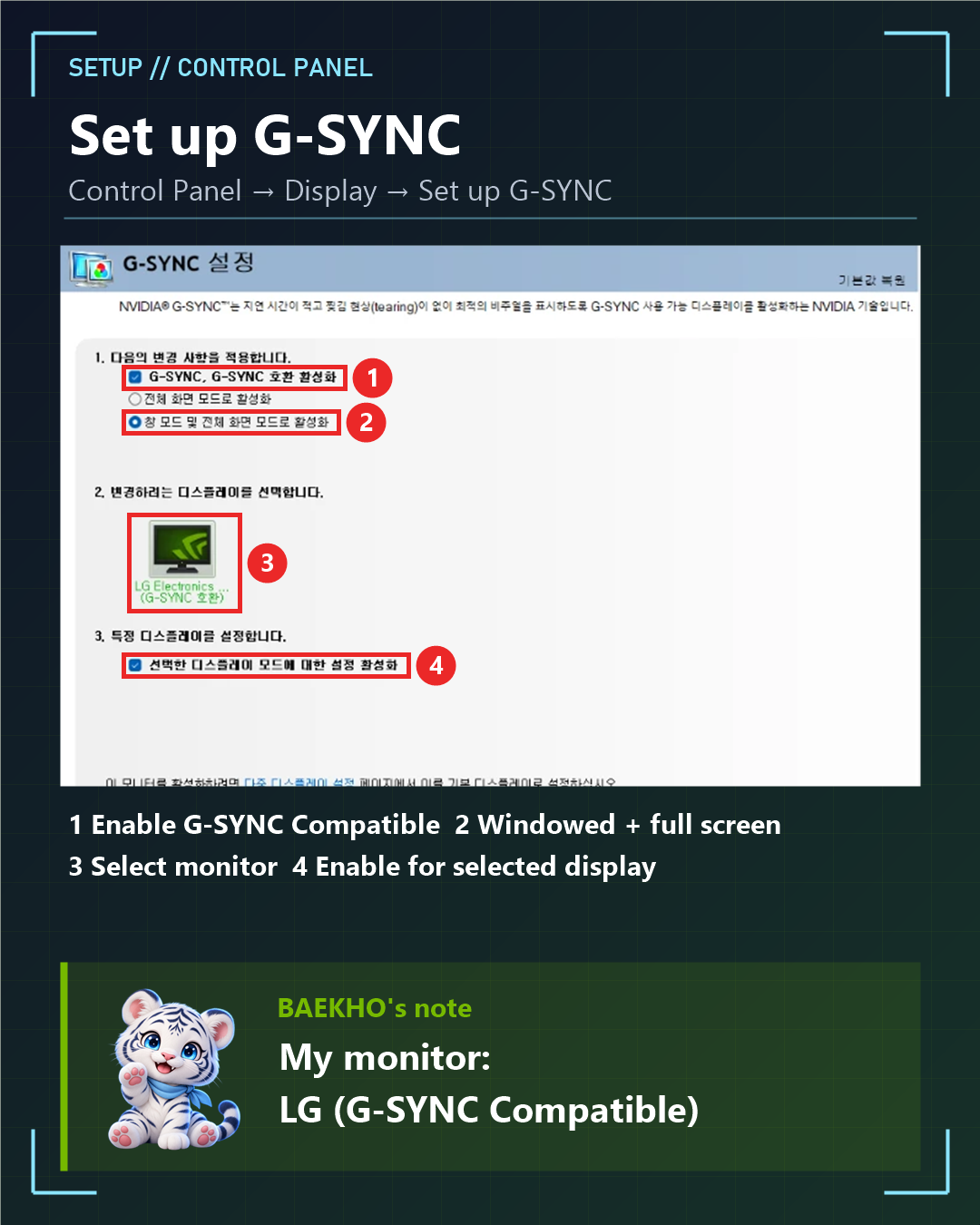
Here are the steps from the NVIDIA Control Panel help, shown on my own screen:
1) Right-click the desktop → NVIDIA Control Panel → "Display" on the left → "Set up G-SYNC."
2) Check "Enable G-SYNC, G-SYNC Compatible."
3) Choose "Enable for full screen mode" or "Enable for windowed and full screen mode." Mine is set to windowed and full screen.
4) Select your monitor below and check "Enable settings for the selected display model." Mine shows "LG Electronics (G-SYNC Compatible)."
5) Finally, check that "Monitor technology" in the NVIDIA App's global settings is set to G-SYNC Compatible.
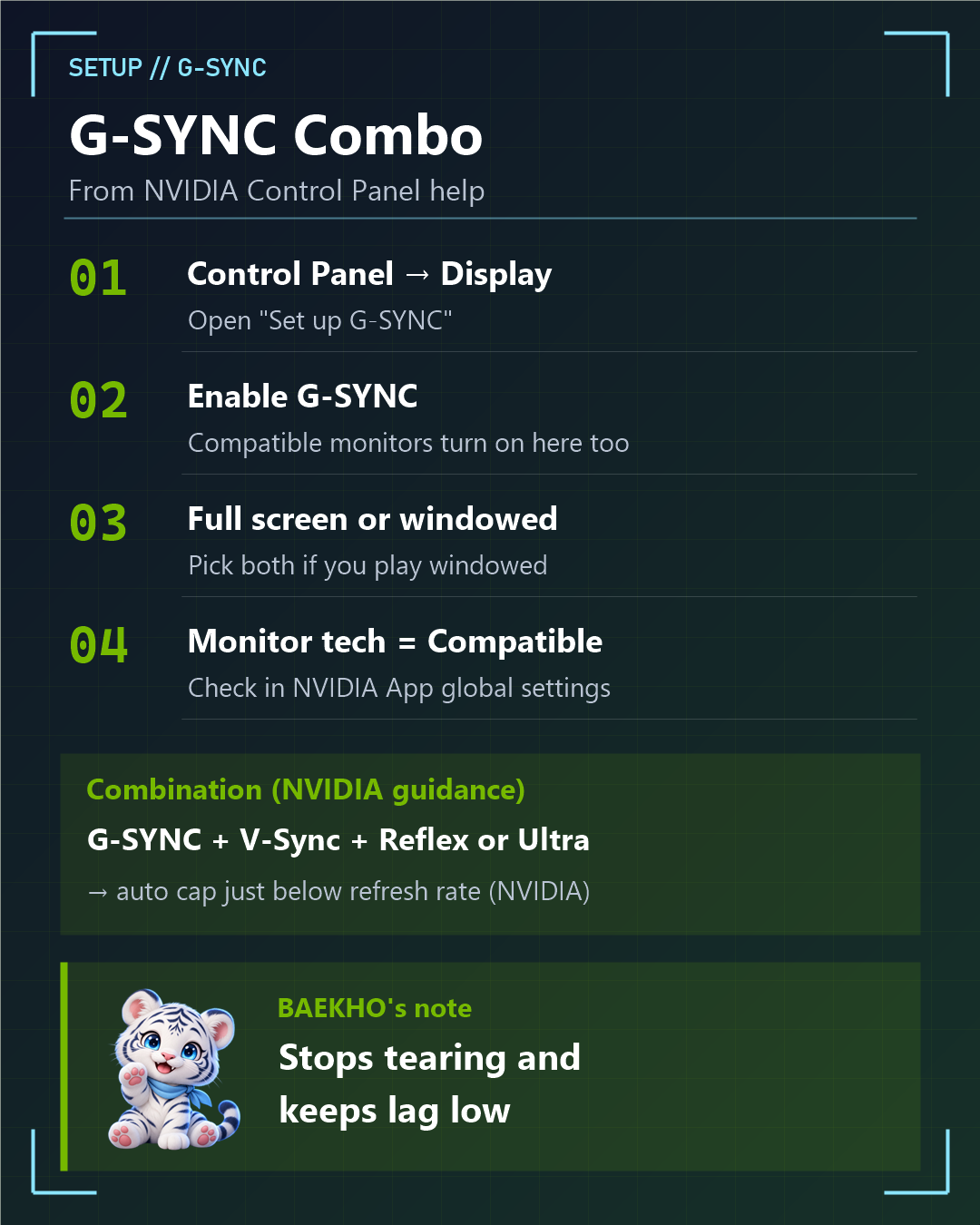
NVIDIA's latency guide describes this combination for G-SYNC users:
- G-SYNC on
- V-Sync on
- NVIDIA Reflex (in the game's settings) or Low Latency Mode set to "Ultra"
According to the guide, keeping V-Sync on with Reflex or Ultra Low Latency Mode automatically caps the frame rate a little below the refresh rate. This prevents tearing and avoids the extra lag V-Sync can cause. NVIDIA also notes that this gives slightly higher latency than running Reflex with an uncapped frame rate.
The condition here is Reflex or "Ultra." My Low Latency Mode is set to "On," not "Ultra," so my setup doesn't match that condition. Some users also report that the automatic cap behaves differently from game to game. I haven't measured the cap on my own PC.
5. Should V-Sync Be On or Off?

- G-SYNC (or G-SYNC Compatible) monitor: G-SYNC on + V-Sync on + Reflex or Low Latency Mode "Ultra"
- No G-SYNC, and tearing bothers you: turn V-Sync on
- A competitive game where every millisecond counts and tearing doesn't bother you: turn V-Sync off for that game only
- Before changing global settings, try per-game "Program Settings" first
To be honest, I can't say for sure that things got better after I set this up. I was told this was the better setup, so I've kept it ever since. Next time, I plan to compare with the frame rate shown on screen in a game that supports Reflex.
There's no single right answer. It depends on your monitor and your games. Change one thing at a time and pick what feels best to you.
6. Summary
- Where to find it: NVIDIA App → Graphics → Global Settings (or Program Settings) → Vertical sync
- Leave the global setting at the default and change it per game if needed (NVIDIA's recommendation)
- G-SYNC monitor: G-SYNC + V-Sync + Reflex or Low Latency Mode "Ultra" (NVIDIA's guidance)
- After changing anything, show your FPS on screen and compare
What I did not test: I did not run a before-and-after frame rate or input lag test with V-Sync on and off. The explanations here come from NVIDIA's official guides, and the screenshots are my own settings.
7. Words to Know
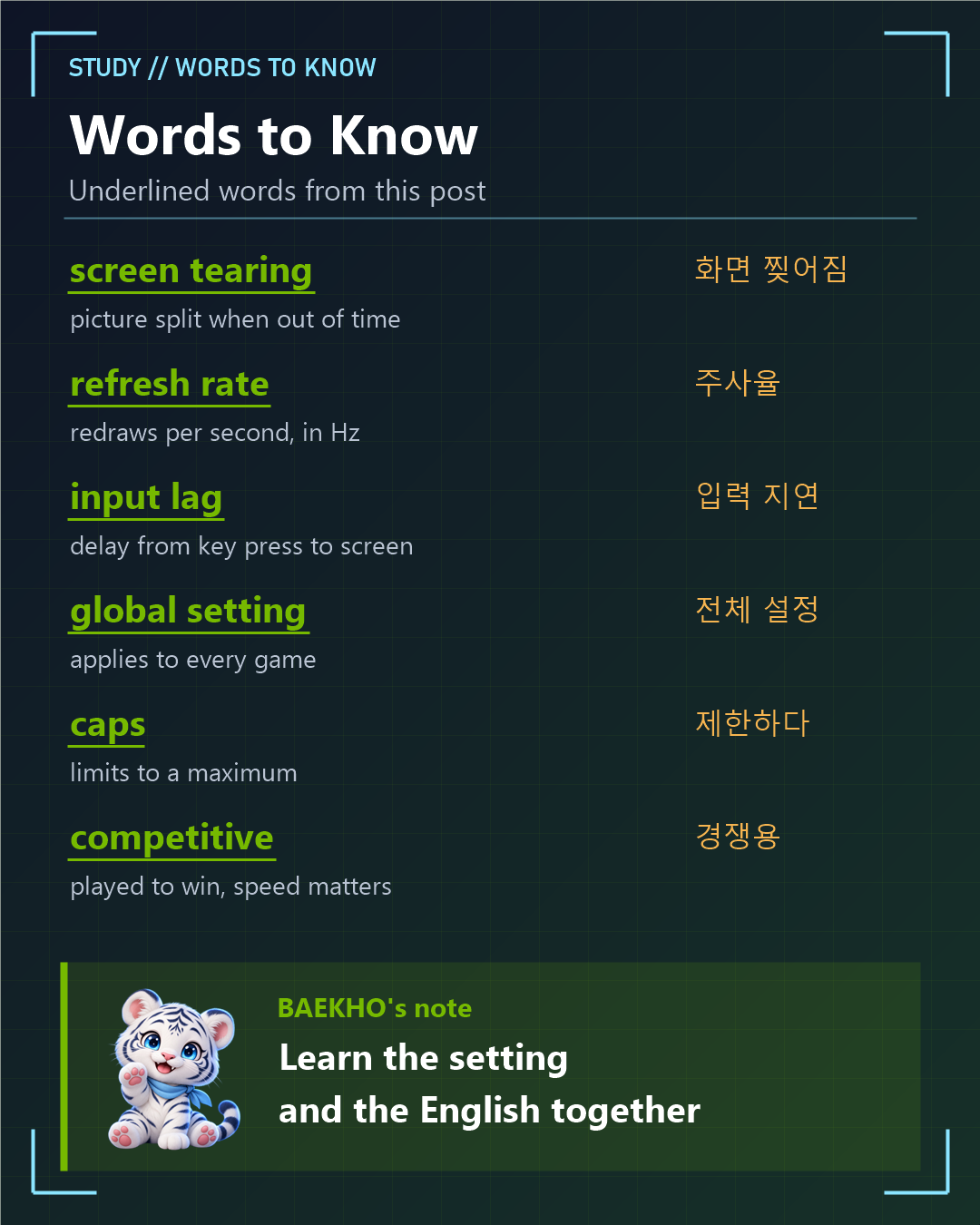
- screen tearing: a split in the picture when the frame and the monitor are out of time (화면 찢어짐)
- refresh rate: how many times per second the monitor redraws the image, in Hz (주사율)
- input lag: the delay between pressing a key and seeing it on screen (입력 지연)
- global setting: a setting that applies to every game at once (전체 설정)
- caps: limits something to a maximum number (제한하다)
- competitive: played to win against other people, where speed matters (경쟁용)
- G-SYNC Compatible: a monitor NVIDIA allows to use G-SYNC without a G-SYNC chip (G-SYNC 호환)
- latency: the delay from your action to the result on screen (지연 시간)
Sources (official pages, in English):
- NVIDIA: V-Sync OFF Not Recommended as a Global Setting Starting with Driver Version 461.09
- NVIDIA Control Panel Help: Setting Up G-SYNC
- NVIDIA: System Latency Optimization Guide
Related posts on TREND BYTE:
Last updated: November 21, 2026 (restructured with a short answer at the top and sources at the bottom; numbers unchanged).

